Transplant
- Transplant Module Overview
- Locating Transplant Patients
- Transplant Recipient Summary Screen
- Recipient’s Workup
- Recipient Operation
- Follow-Up
- Live Donor Workup
Transplant Module Overview
Renalware handles all aspects of renal transplant care, including Transplant Workups, Recipient Operations, Follow-Ups, and Live Donor Workups. These are described below.
Locating Transplant Patients
You can look up Tx patients by selecting MDMs at the top of RenalWare and selecting Transplant from the black drop-down list. This will take you to a list of all Tx patients — you can filter by site, consultant etc. Select the patient and it will bring up their summary profile.
You can also use the Quick Search function to locate a given patient. Select Recipient Summary under the Transplant section from the left gutter. This will take you to the Transplant Recipient Summary page.
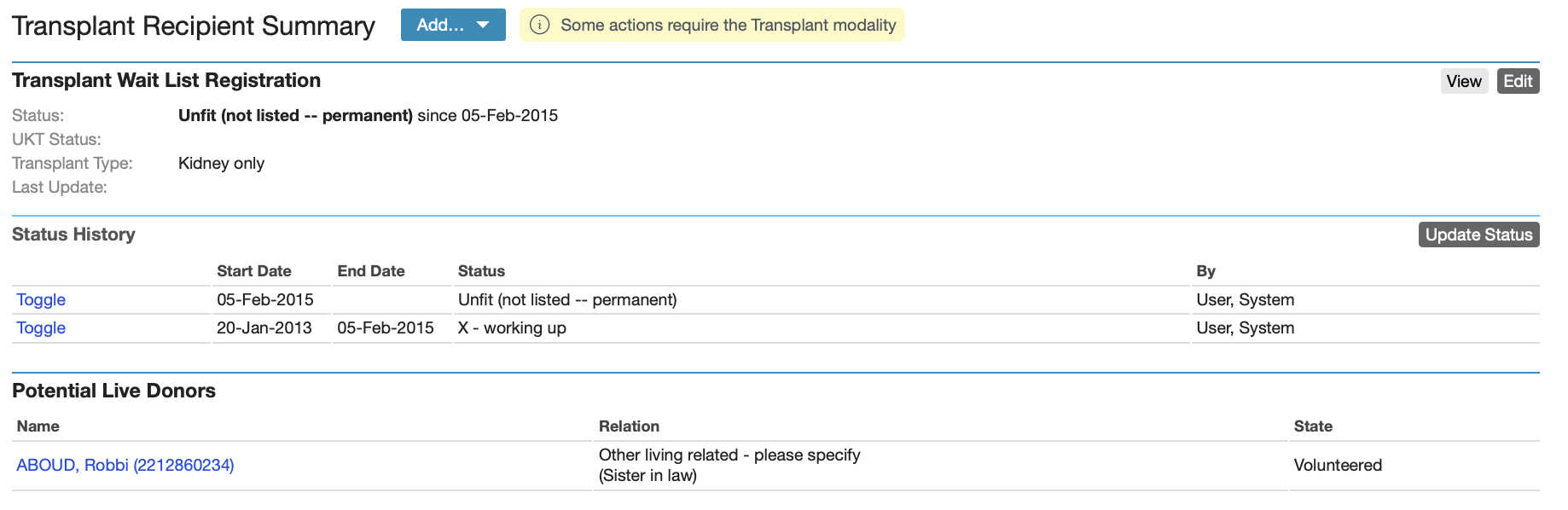
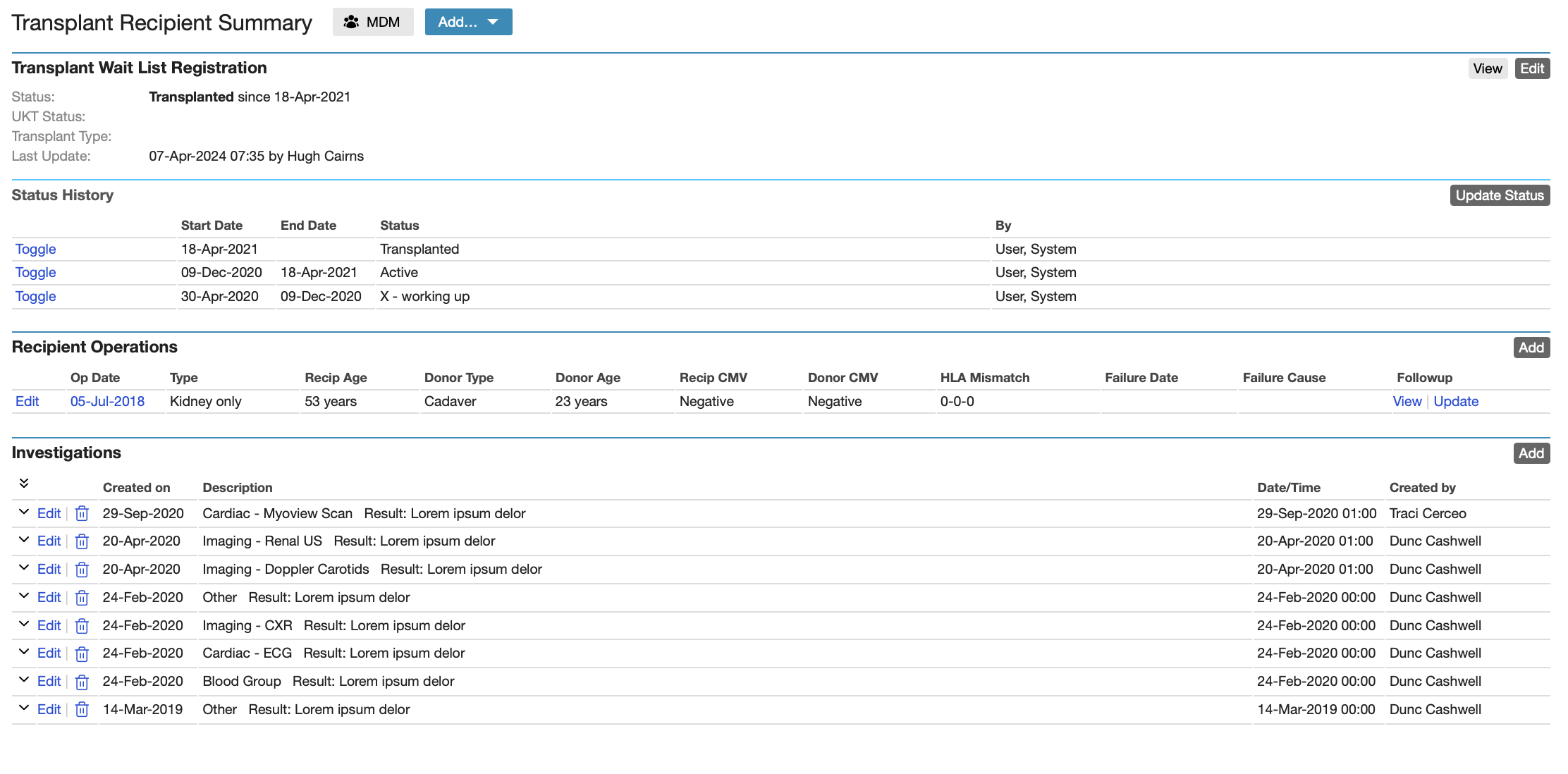
Transplant Recipient Summary Screen
On this screen you can see Tx status, wait list registration, Status history and Recipient operation details. Click on the blue Add tab and you can select ‘recipient work up, wait list registration, recipient operation and add investigation’ to update each section with required information.
Recipient’s Workup
Recipient’s Workup – selecting this option from the Summary will then take you to the work up page – fill in as much of this page as possible and click on the blue ‘create’ tab at the bottom of the page. Select the Transplant Recipient Summary to go back to the main summary page.
Recipient Operation
This option is available from the drop down menu. Complete as much of this page as possible (required fields are Op Date, Op Type, Op Site (hospital), Operation Number (i.e. is this the 1st, 2nd or 3rd Tx) Donor type, If live then relationship. If cadaveric go to cadaveric part and enter cadaveric type), Date of operation and click on the blue ‘create’ tab when done. Select the transplant Recipient Summary to go back to the main summary page.
Follow-Up
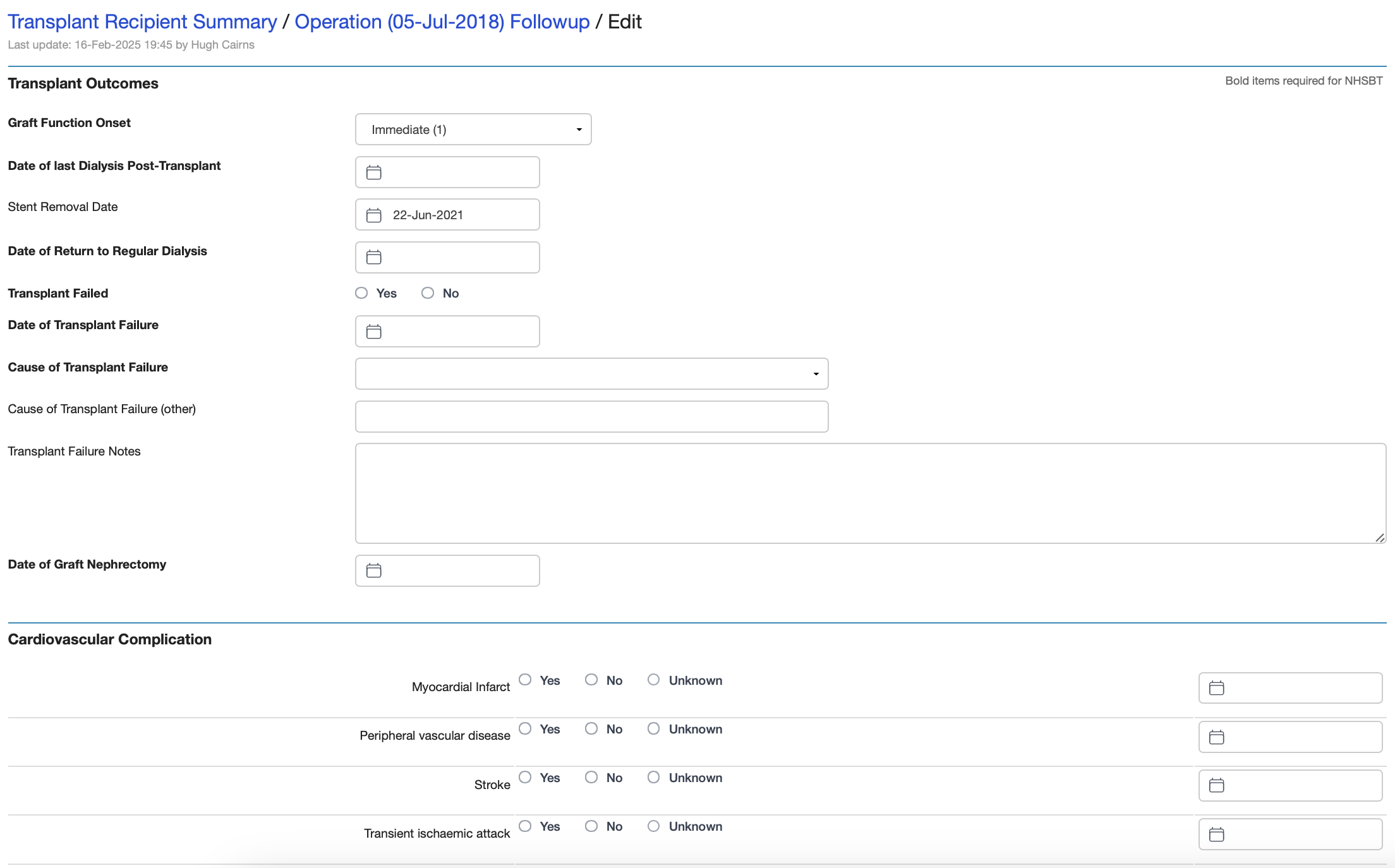
On the main summary page under the recipient operations section at the bottom, there is a follow up heading – under in blue writing there is a tab ‘Enter Details’. Select this option. It will take you to the follow up page, complete as much of this section as possible (what would be on the follow up paper version), also under the ‘Transplant Rejection’ heading, click add to add each episode of rejection in. When done click on the blue ‘create’ tab when done. It is important that the follow up section is kept updated as and when new follow up details occur. (This section will be replacing the paper versions of the follow up document we currently complete and send to the renal registry.) If a patient has a rejected transplant you will need to add each rejection in as separate episodes.
Live Donor Workup
Potential Live Kidney Donors can be tracked through Renalware and data recorded related to the workup process and the donor operation. This depends on creating a Live Donor modality for the patient: once this is done, Donor Summary will appear as an option in the Left Gutter and work up and other data can be entered.
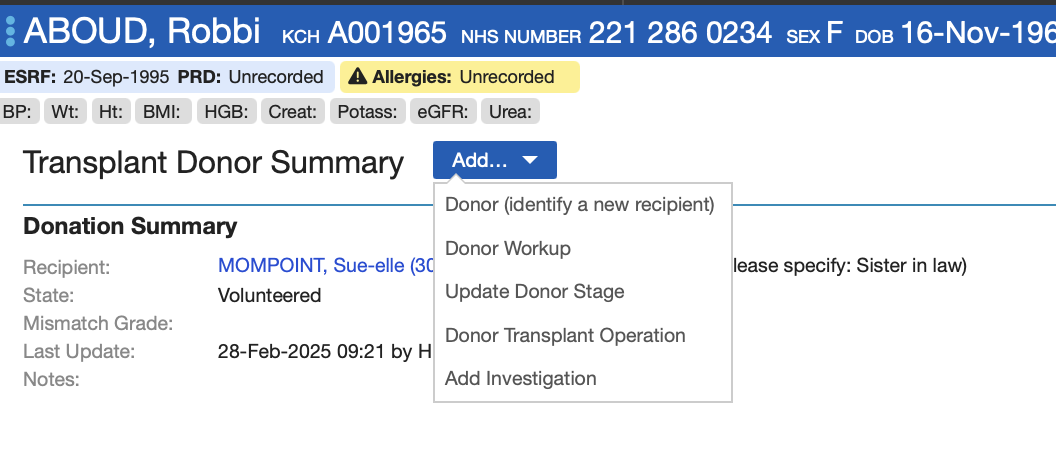
As seen below, the potential recipient for the live donor can be selected from the list of patients in Renalware and entered into the Recipient details section:
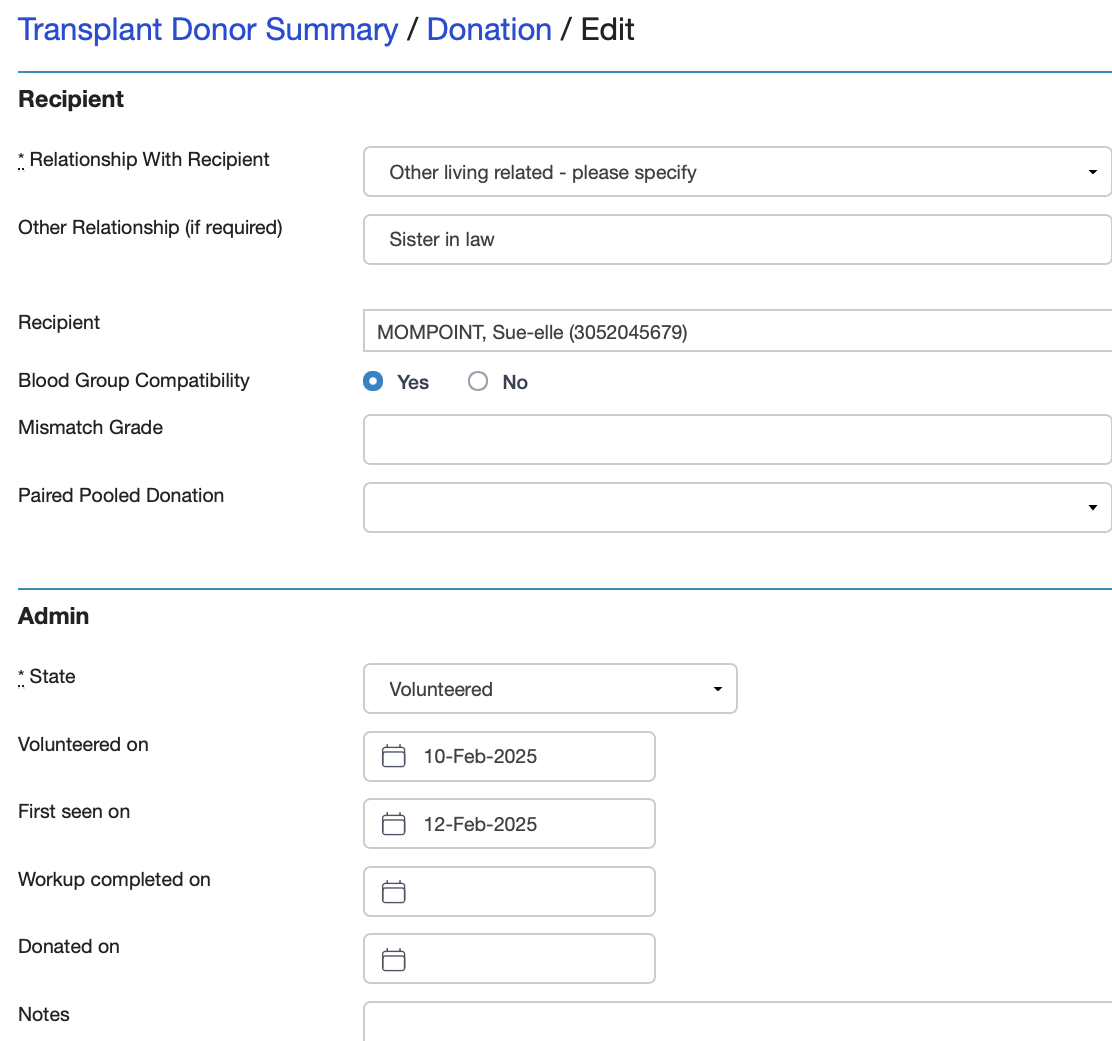
Once selected, the Recipient will appear on the Summary screen for easy access of that patient’s records. Equally, once the potential recipient for a Live Donor is selected, the Live Donor will appear on the Recipient Summary providing a link back to the potential donor(s).