Clinic Visit Letters
These are among the most common and important letters generated in Renalware.
Once a Clinic Visit has been created, a letter can be created from the Clinic Visit list for that patient (Clinic Visits in the Left Gutter) or from the complete list of Clinic Visits (under Renal in the top menu bar) which can be filtered by Clinic, Clinician and a Date Range.
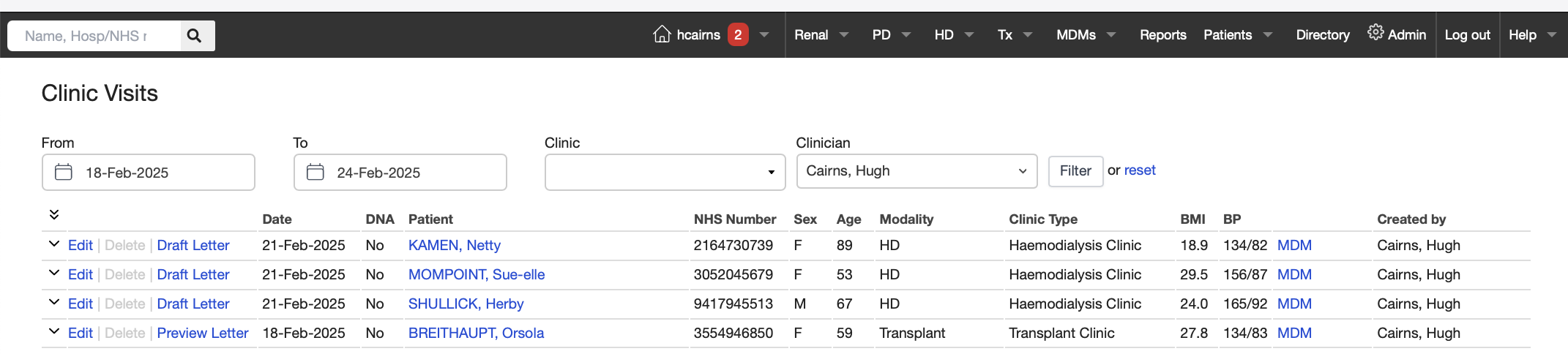
Selecting Draft Letter will start the Letter Creation. As can be seen in the sample below, the information from the Clinic Visit (BP, weight, etc) will be displayed at the top of the page as an aide memoire including any notes made by the clinician at the time of the visit. The data from the clinic visit is then automatically inserted into the body of the letter.
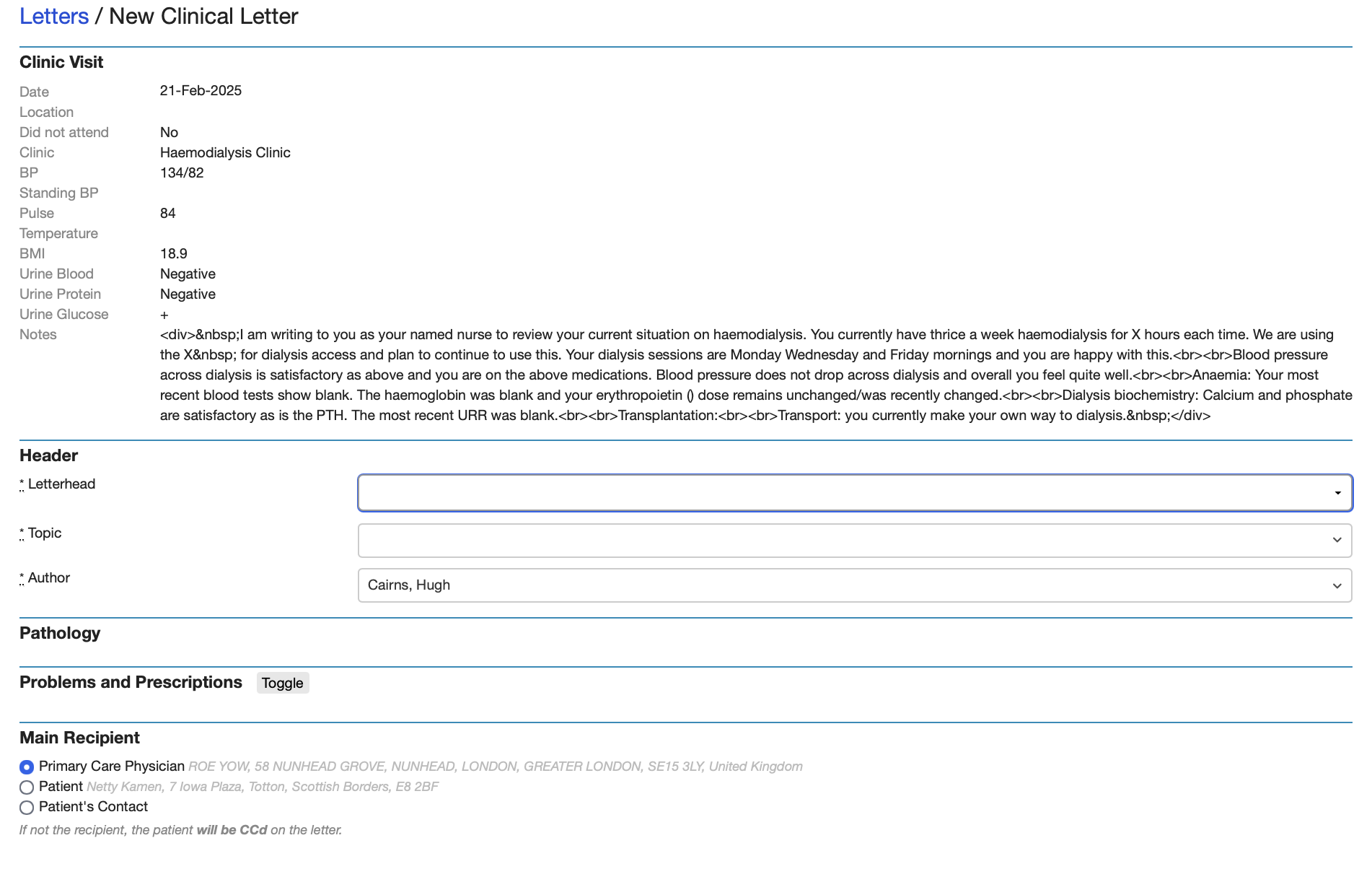
The fields for the letter type (Letterhead and Topic) will need to be selected but, if you are doing a series of letters related for example to the same clinic, these fields will be auto-populated in subsequent letters. The primary recipient of the letter defaults to the GP with copy to the patient unless they have opted out of receiving copies of their letters. The Primary Recipient is easily changed to be the Patient (in which case the letter is copied to the GP).
After the letter is composed, electronic CCs can be added. Any CC from the patient’s Contacts in the Directory and electronic CC (any Renalware) can be selected at this stage. Named Nurses automatically receive an electronic CC of all letters on their patients.
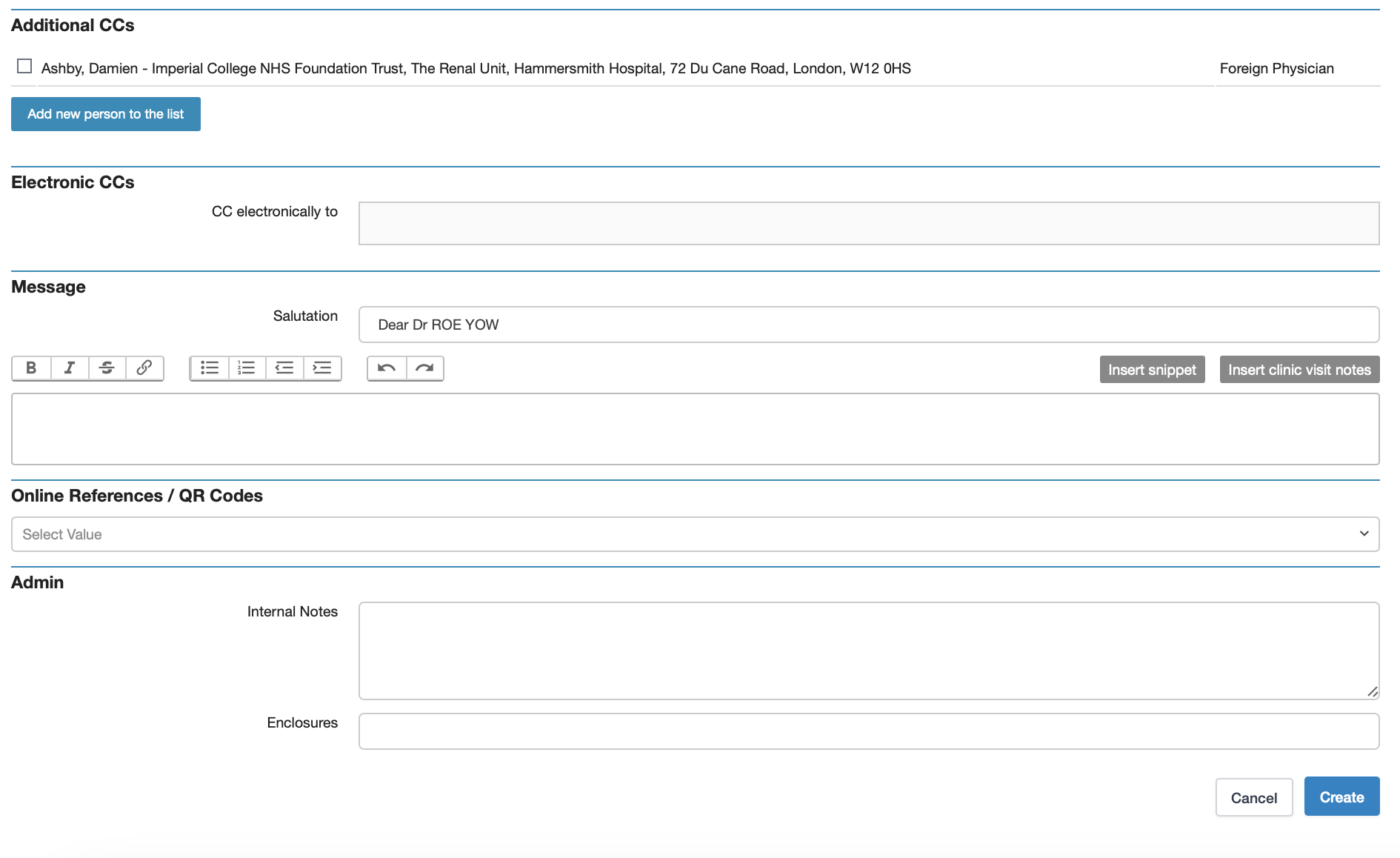
The Notes from the Clinic Visit can be selected to appear in the body of the letter or a Snippet from your or anyone else’s Snippet list can be selected. Equally Voice Recognition with Direct Dictation can be used to complete the body of the letter. Once the letter is completed, click on Create and the formatted letter is then displayed.
This can be then Submitted for Review so will appear on the Author and, if different, the typist’s Dashboard. Draft and Unarchived letters also appear in the patient’s Clinical Summary screen and the Letters screen. The author than can review the letter, make any required changes and then can Approve and Archive.
Users must understand that, once Archived, a letter cannot be retrieved and will be sent electronically to the Trust EPR as well as (usually) the GP surgery, and will be available for printing as required by the secretarial team.