Haemodialysis (HD)
- Finding HD patients
- Enabling an HD Profile
- HD Summary
- HD Profile
- HD Access
- Entering HD Sessions
- Latest HD Sessions
- Recording HD Administered Drugs
Finding HD patients
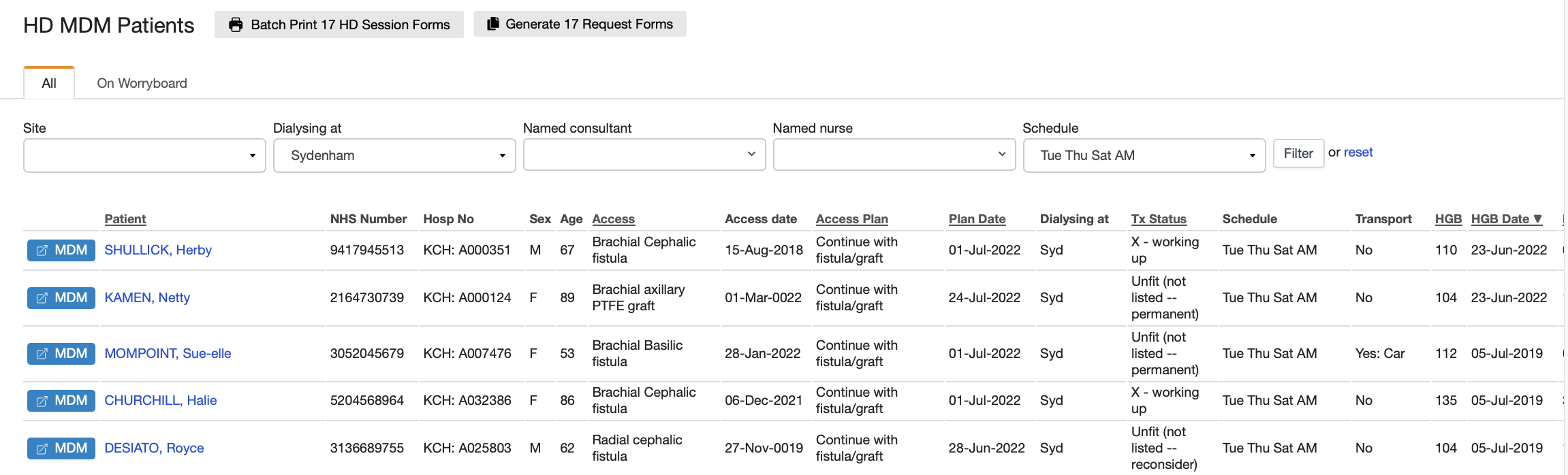
Individual HD patients can be found through the Search field using their Name(s) or any hospital number (local or NHS number). Groups of HD patients can be found through the HD MDM lists (MDM at top of each screen and scroll down to HD). Once in the MDM screen, this can be filtered to find the desired group of patients (e.g. by Hospital unit, HD schedule, Named nurse or Named consultant). The MDM list displays some useful data and each patient’s HD Summary screen can be accessed by clicking on their name.
Enabling an HD Profile
To enable the creation of the HD Profile, record HD sessions and other HD database functions, the patient must first have been assigned a Modality of HD. This is created via the Modality screen (available from the left gutter for each patient). Once a patient has an HD Modality, the HD screens can be accessed via the HD link in the left gutter. When clicked, this takes the user to the HD Summary screen for that patient.
HD Summary
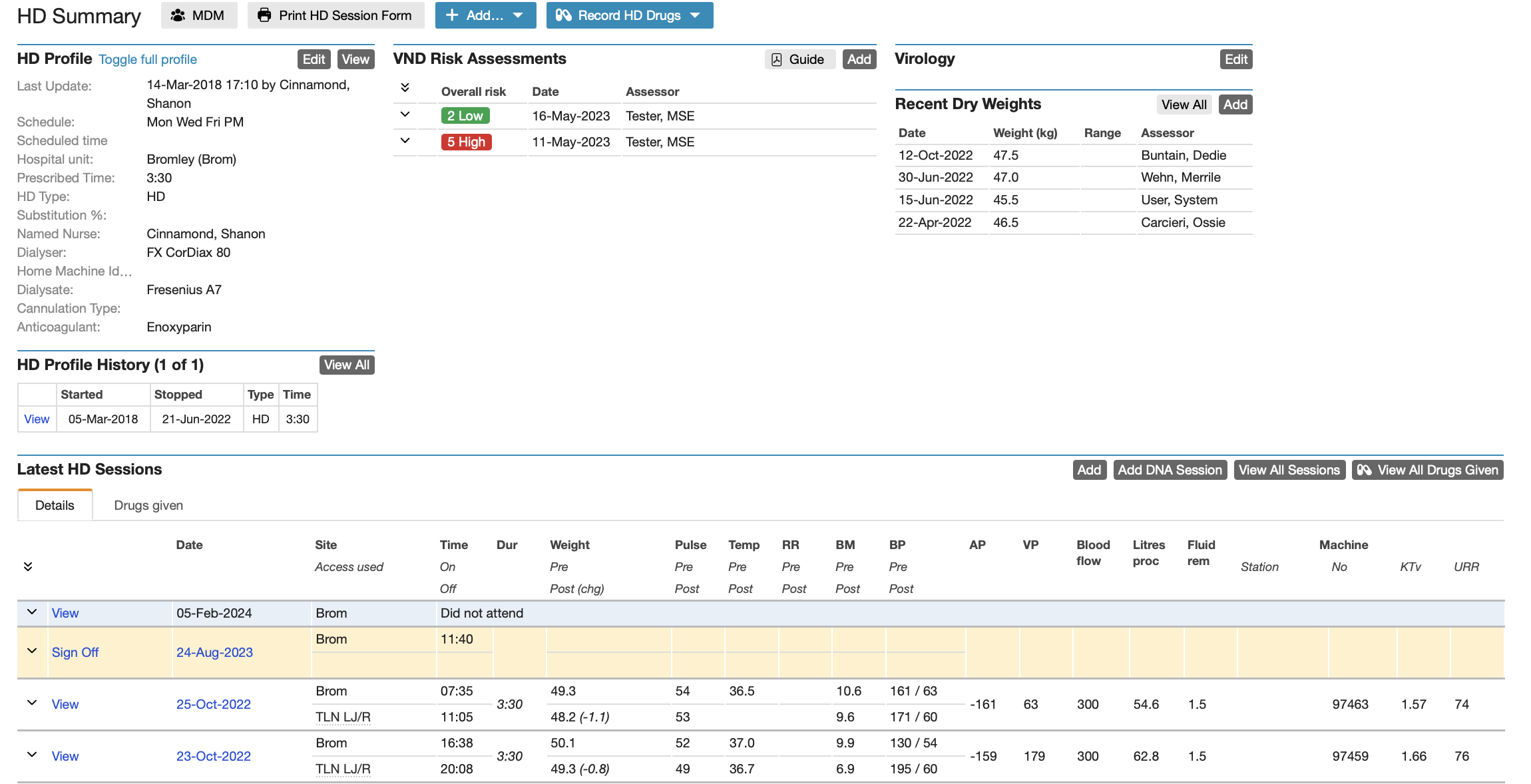
The HD Summary screen displays the following:
- Current and previous HD Profiles
- HD Access Profile
- Virology
- Dry Weights
- HD Schedule and Preferences
- Latest HD Sessions
HD Profile
Use the Add button to create an HD Profile for a new patient. If the patient has an existing HD profile, this option will be unavailable and therefore use the Edit button to amend the existing HD profile where appropriate. This information is important to help define each HD session, pre-populate some fields for each HD session and help find groups of patients (e.g. having dialysis on M/W/F in the morning).
The HD Profile can be accessed from the left gutter (for patients with an HD modality) or from the HD MDMs list for patient review.
HD Access
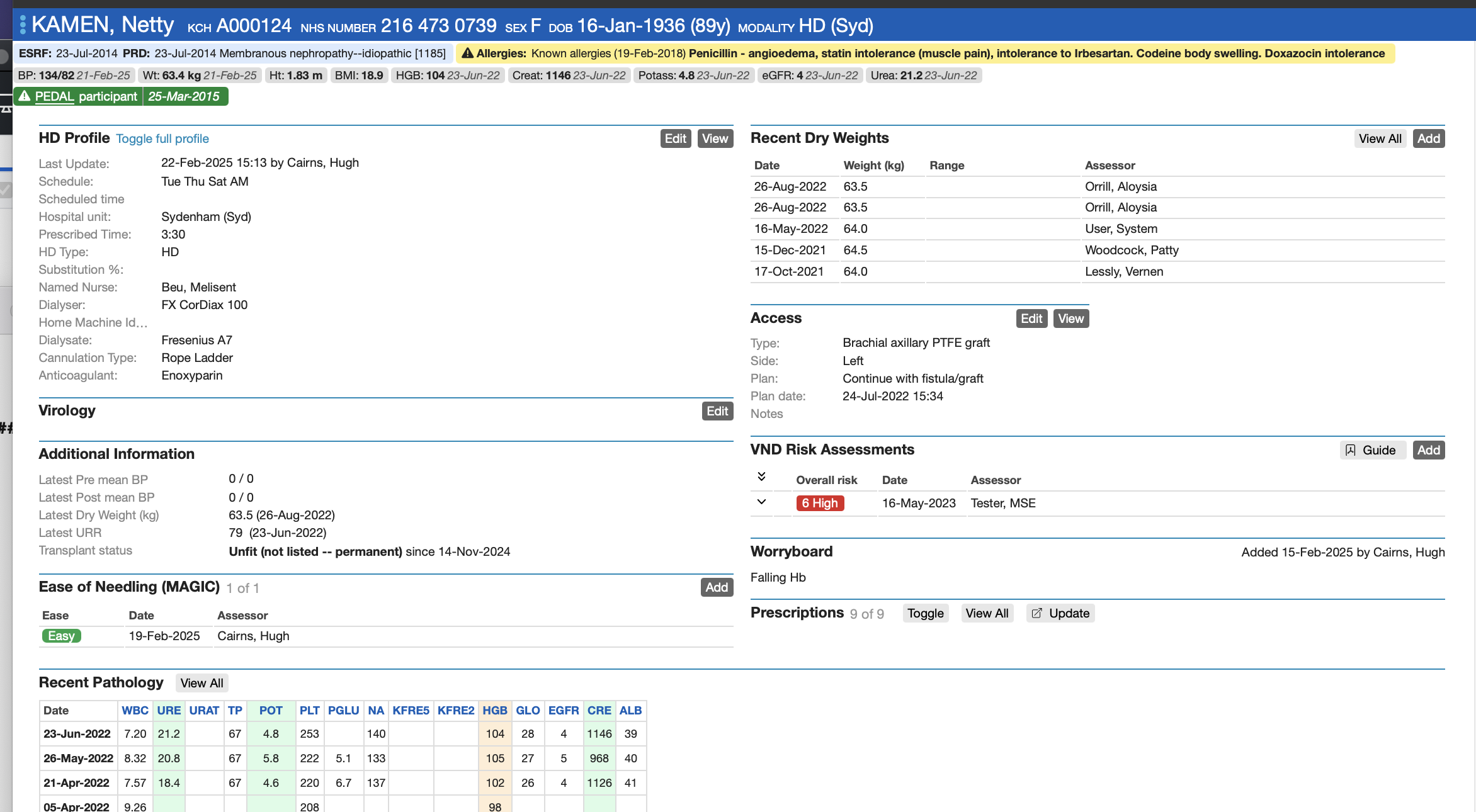
These fields can be accessed using the Add or Edit buttons on the HD Summary screen or via the Access Summary link in the left gutter. Tracking access procedures and recording current HD access improves data quality and pre-populates the access fields for each recorded HD session. Recording the Access Plan for each patient enables staff to identify more easily patients who require access interventions or are awaiting a procedure.
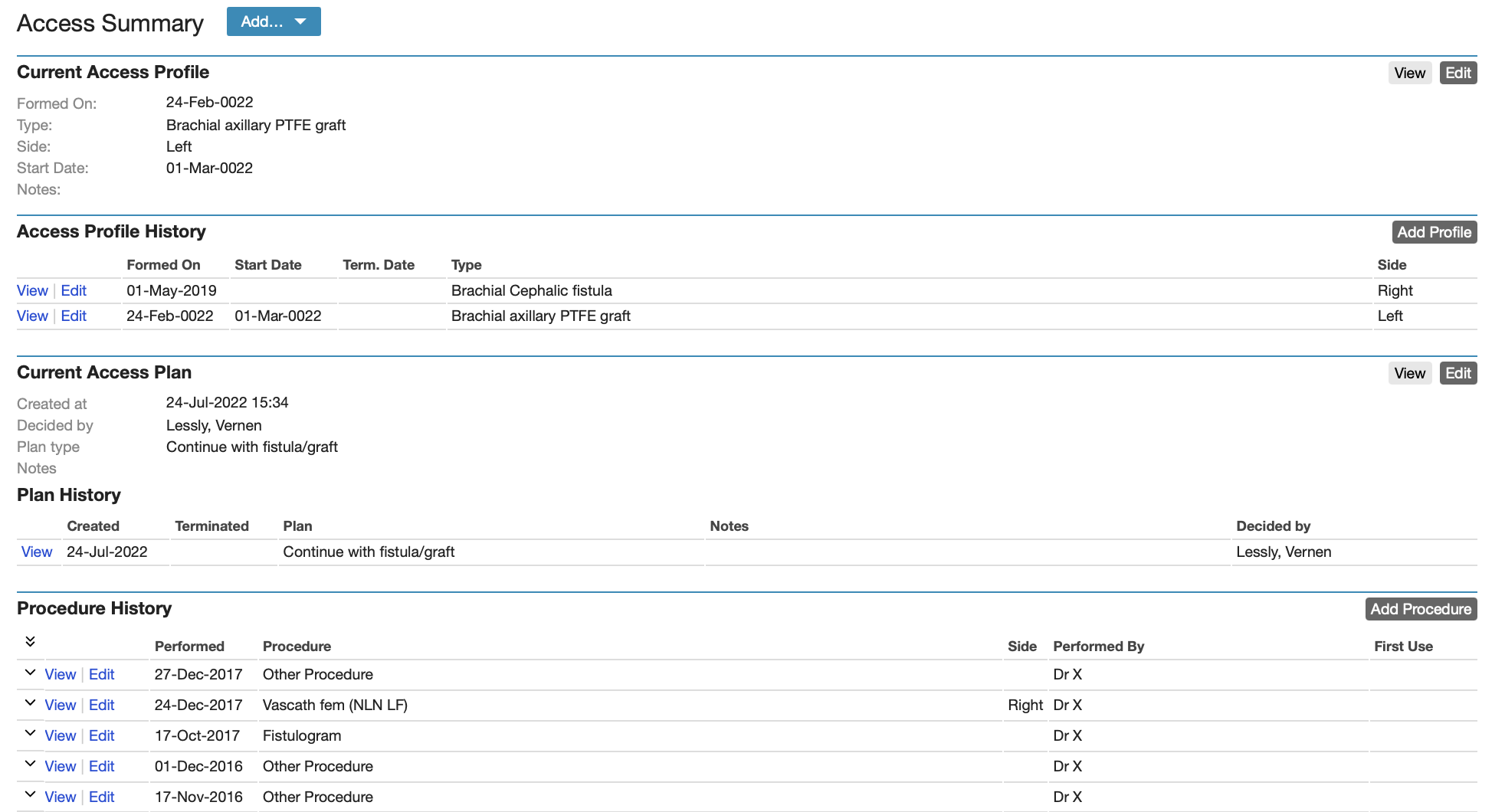
Note that the Access Plan information for each patient is displayed in the HD MDM listing for easy reference.

Entering HD Sessions
The new session screen allows entry for the following information:
- Sign In
- Sign Off – leave blank if session not completed
- Session Info
- Access
- AVF/AVG Assessment
- Pre Dialysis Observations
- Post Dialysis Observations
- Dialysis
- HDF
- Notes/Complications
To speed up initial data entry the complications all default to NO and the user can switch to YES for those complications which have occurred.
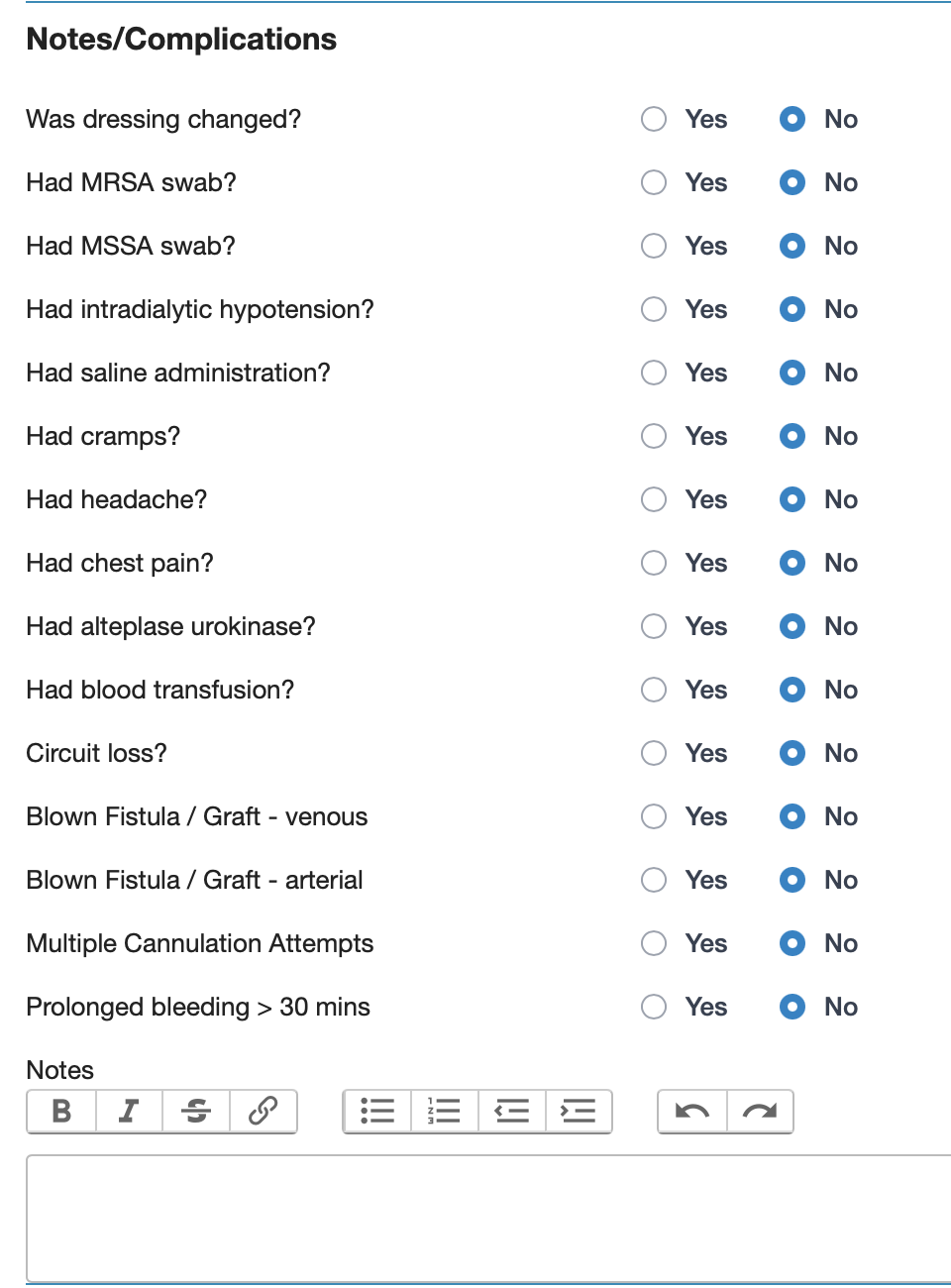
Accurate entry here is obviously essential for audits as well as for ensuring proper clinical care.
Some information will populate from profiles where appropriate. Verification of some default fields will be required when completing the session data (e.g. the user has to confirm that the current Access was used for this HD session). The Save and Sign-off button is available at top and bottom of the screen.
“Did Not Attend” an HD session is recorded by clicking on the DNA HD session button.
Latest HD Sessions
Recent sessions are displayed in the HD Sessions list:
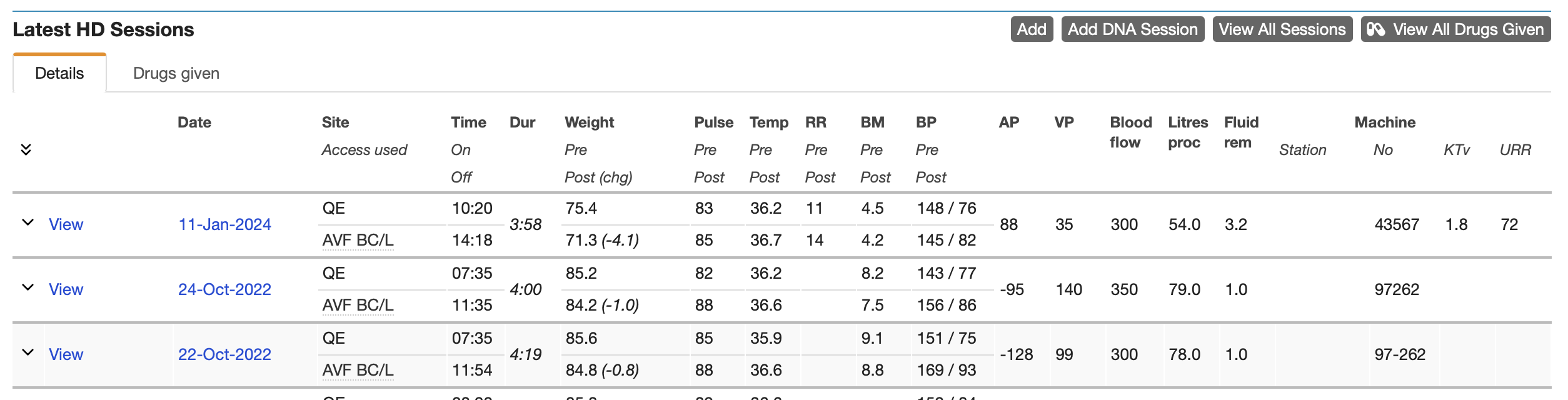
One can toggle between displaying the session details (as above) and displaying any HD drugs administered during a given session:

Recording HD Administered Drugs
If a drug has been prescribed to be administered on HD, it can be recorded as given by selecting Record HD drugs and choosing the drug from the drop down (only medications which are recorded as “To be given on HD” will appear on this list). This option is available from the HD Summary screen. Drugs must be co-signed by the drug administrator and a co-signatory in order to be recorded as given at the end of the session. The sign-off process is performed by each user entering their password.